My TTC OC fellow and lead Henshin developer Christian Krause has posted a simple but nice performance benchmark for graph transformation tools in this blog post.
Given models conforming to the metamodel shown in the following image, the task is to create one Couple node for every pair of persons that acted together in at least three movies.
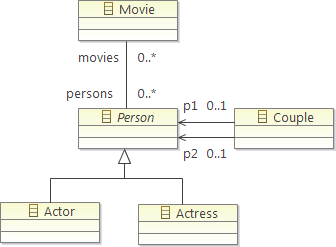
The Henshin implementation of this transformation is included (currently only in the nightly builds) of the Henshin Example Plugin.
In this blog post, I’m going to compare the Henshin solution with my own solution which is implemented with the in-place transformation API of my model querying and transformation library FunnyQT.
The Transformation Specification
First, let’s have a look at the transformation specifications of both solutions.
The Henshin Transformation
Henshin is a visual graph transformation language for EMF models, i.e., rules are defined as diagrams with a quite good Eclipse-based visual editor.
The transformation consists of one single transformation rule shown below, and one Java class that acts as a test-driver applying the rule to a set of increasingly large models. (In fact, there are actually two more rules that are used to create the test models, but those aren’t important here.)
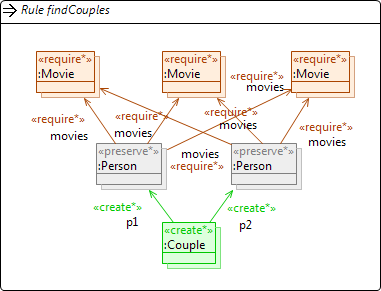
I don’t want to recap everything Christian said, so here’s a brief overview of the rule’s concepts.
Basically, a rule mimics the structure to be matched in the model using node and edge symbols annotated with either preserve or require stereotypes. During the pattern matching process, an isomorphic mapping from node and edge symbols in the pattern to actual nodes and edges in the model is computed. If such a match can be found, new nodes and edges are created in the model as defined by the elements annotated with create stereotype in the pattern.
That all annotations are starred, e.g., require*, tells Henshin to apply the rule to all matches in one go. The usual graph transformation semantics is to apply a rule just once to some arbitrary match which is found first, and then maybe to iterate the rule application until no more matches can be found. In that case, however, we’d negative application conditions (stereotype forbid) in order not to create new Couple nodes for persons that are already coupled. Therefore, such forall-rules perform better than iterating normal rules, but you can only use them if a rule’s effect does not interfere with what’s matched by the rule, e.g., if a rule can invalidate a later match, a forall-rule won’t do.
The difference between preserve and require is that the former would produce a separate match for any combination of three movies the two persons have in common. However, here we are only interested in the existence of at least three common movies but that’s it. require does exactly that.
However, since both persons are (and need to be because there are incident create edges) annotated with preserve, the Henshin solution actually creates twice as many Couple nodes as are needed because the symmetry of the persons. That is, if two persons P1 and P2 act in at least three movies, one couple node is created for the match (P1, P2) and another one for (P2, P1).
Christian suggests enforcing an alphabetic order using a constraint on attribute values to circumvent that issue. However, the minimal metamodel doesn’t define any attributes for the Person class (or any other class). Of course, a realistic metamodel like the IMDB-based one he talks about would do so.
The FunnyQT Transformation
FunnyQT is a model querying and transformation library implemented in the functional Lisp-dialect Clojure. FunnyQT has several sub-APIs (namespaces) for different querying and transformation tasks. For example, there’s a usual out-place model-to-model transformation API (namespace funnyqt.model2model), a bidirectional transformation API (namespace funnyqt.bidi), and several more.
FunnyQT supports EMF models just like Henshin, but it also supports JGraLab TGraphs. Furthermore, it’s designed with extensibility in mind, so most parts are realized generically using Clojure protocols that can be extended dynamically to other model representations without having to touch FunnyQT’s internals (or the classes of the other model representation).
Since FunnyQT is a Clojure library, queries and transformations are just Clojure code. But as a Lisp-dialect, Clojure provides strong metaprogramming capabilities (macros) that FunnyQT uses to provide several task-oriented embedded (or internal) DSLs to the transformation developer.
Ok, that said, here goes the transformation specification. The solution project is also published in this github project.
The first thing one usually does is to define a namespace for the transformation which requires the needed parts of FunnyQT.
(ns ^{:pattern-expansion-context :emf}
  funnyqt-movie-couples.core
  (:require [clojure.set      :as set]
            [funnyqt.emf      :as emf]
            [funnyqt.in-place :as ip]))
So the name of the transformation namespace is funnyqt-movie-couples.core, and we’re requiring the Clojure namespace clojure.set plus the two FunnyQT namespaces funnyqt.emf and funnyqt.in-place. clojure.set provides functions on sets like intersection, funnyqt.emf provides functions for accessing EMF model elements, and funnyqt.in-place provides constructs for graph transformation-like in-place transformations.
The :as clauses define short aliases for the required namespaces. So their functions need to be qualified (making it obvious where a function called in this namespace originates from), but the qualification can be done with the short alias instead of the complete fully qualified namespace name.
The strange notation ^{:pattern-expansion-context :emf} is a Clojure metadata annotation attached to the namespace name. This concrete one tells FunnyQT that all transformation rules defined in this namespace should expand to pattern matching code suitable for EMF models.
Like the Henshin solution, the FunnyQT solution consists of one single rule shown in the next listing.
(ip/defrule ^:forall make-couples [m]
  [p1<Person> -<movies>-> <> -<persons>-> p2
   :when (and (not (identical? p1 p2))
              (three-common-movies? p1 p2))
   :as #{p1 p2}
   :distinct]
  (emf/ecreate! m 'Couple :p1 p1 :p2 p2))
The macro funnyqt.in-place/defrule defines an in-place transformation rule given a name (make-couples), an argument vector ([m]) where the first argument has to be the model, a pattern vector ([p1...]), and arbitrarily many actions that should be executed on a match ((emf/ecreate ...)).
The ^:forall metadata annotation attached to the rule’s name is FunnyQT’s equivalent to the starred stereotypes in Henshin, that is, when this rule gets applied it takes action on all matches in the model m in one go.
The structural part of the pattern (p1<Person> -<movies>-> <> -<persons>-> p2) defines that the rule matches a Person node p1 that’s connected to some other node p2 via a path of first a movies reference to some arbitrary intermediate node and then a persons reference to p2. In simple words, it defines that the persons p1 and p2 act together in some movie. Note that except for p1 there are no types declared because those are clear from the metamodel anyway. Adding the type Movie to the anonymous intermediate node and Person to p2 wouldn’t change any semantics.
In contrast to Henshin, FunnyQT’s pattern matching facilities default to homomorphic matching rather than isomorphic matching. That is, matches where p1 is matched to the very same node in the model as p2 are perfectly valid. Therefore, the pattern contains a :when constraint ensuring that p1 and p2 are not identical.
Furthermore, the structural part of the pattern just says that there is at least one movie where p1 and p2 act together, not three of them. So that additional constraint is handled by another predicate three-common-movies? that’s going to be discussed below.
You still remember that the Henshin solution created twice as many couples as needed because of the symmetry of the two persons? The last two lines of the pattern solve that issue for the FunnyQT solution. The :as clause defines that matches of the pattern should be represented as a set #{p1 p2} (rather than a tuple) thus making the order insignificant. The :distinct modifier then defines that the rule should only be applied to distinct matches.
Such a rule definition done with the funnyqt.in-place/defrule macro expands into a plain Clojure function at compile-time. Thus applying the rule to a given model is just a matter of (make-couples my-model).
The missing part of the solution is the three-common-movies? predicate that returns true only if the given two persons act in at least three common movies.
(defn three-common-movies? [p1 p2]
  (>= (count (set/intersection
              (into #{} (emf/eget-raw p1 :movies))
              (into #{} (emf/eget-raw p2 :movies))))
      3))
The predicate simply checks is the intersection of p1‘s movies and p2‘s movies is larger than or equal to 3. funnyqt.emf/eget-raw is a function that gets an EObject and a structural feature name given as keyword and returns its value as-is (e.g., as an EList, here). One would usually use funnyqt.emf/eget which does the same but returns the value as a persistent, immutable Clojure data structure in case it’s a collection. Concretely, if the value is an EList, eget would return a Clojure vector. Since we’re coercing to sets anyway, using eget-raw omits a double-conversion.
Performance Comparison
Both the Henshin and the FunnyQT solution perform about equally well. They both scale linearly for the provided test models. Most probably their pattern matching approach is pretty similar. Although not clearly stated in Christian’s blog post linked above, it sounds to me that Henshin’s Giraph code generator generates code that does a breadth- or depth-first search starting at some person node.
FunnyQT patterns are also matched by transforming the textual pattern DSL into a comprehension that effectively does a depth-first search anchored at the node that occurs first in the pattern, i.e., for every Person p1 all nodes p2 connected via one movies reference followed by a persons referenced are searched one after the other.
The following table shows the pure transformation runtimes (excluding model load time, and after a warmup run) for the provided test models ranging from the size of 170,000 nodes to 1,700,000 nodes.
All tests were run on my 5 years old ThinkPad with dual-core 2.1 GHz CPU (but none of the solutions is multi-threaded anyway), and the JVM process was given 2 GB maximal heap space.
| Model Size (#nodes) |
Henshin Time |
FunnyQT Time |
| 170,000 |
3.3 sec |
2.2 sec |
| 340,000 |
7.3 sec |
4.4 sec |
| 510,000 |
5.7 sec |
6.9 sec |
| 680,000 |
7.2 sec |
10.7 sec |
| 850,000 |
14.1 sec |
12.8 sec |
| 1,020,000 |
17.4 sec |
14.7 sec |
| 1,190,000 |
19.4 sec |
17.4 sec |
| 1,360,000 |
13.2 sec |
14.1 sec |
| 1,530,000 |
15.9 sec |
17.0 sec |
| 1,700,000 |
17.8 sec |
17.6 sec |
Wow, quite good for both. So whatever tool you choose for solving that kind of in-place transformation problems seems to be mostly a matter of if you prefer visual or textual transformation languages.
(Of course, visual languages are for kiddies… SCNR :-P)


 Tassilo's Blog